Salesforce Web Console (Beta): Beyond the Developer Console
If you’ve ever tried to debug a failing batch job in the legacy Developer Console, you know the pain. The UI feels like it hasn’t been updated in a decade, logs regularly fail to load or truncate without warning, and the moment you need to cross-reference a SOQL result with the Apex source, you’re juggling multiple browser tabs, a VS Code window, and your sanity. I’ve lost count of the number of times I’ve had a Developer Console tab silently disconnect, losing the log I was halfway through reading or come back to the console to find my script gone. If you want a broader foundation for that workflow, SOQL in Apex and Apex fundamentals are the two guides I usually point people to first.
That is exactly why the Salesforce Web Console (Beta), introduced in open beta in April 2026, immediately caught my attention. As of this July 2026 review it is still a beta service, disabled until an administrator opts in. It is a modern, browser-based IDE embedded directly into Salesforce, designed to bridge the gap between the legacy Developer Console and more robust, project-oriented IDEs like VS Code or Agentforce Vibes IDE. Its primary focus is delivering an in-context troubleshooting experience that reduces the constant tool-switching friction I’ve battled for years. Salesforce’s Web Console FAQ is the source of truth for its current status and supported scope.
💡 The Philosophy: “Code Where You Build”
Section titled “💡 The Philosophy: “Code Where You Build””The core principle behind Web Console aligns perfectly with how I’ve always wanted to work: stay where the problem is. Instead of opening a separate editor and hunting for the right file or log, you launch Web Console from the same surfaces where issues appear, such as Setup or specific job and metadata pages. This embedded, context-aware model lets you start from the problem itself (an erroring Apex job, a slow query, or a failing transaction) and stay in one connected environment from investigation through fix and validation.
Salesforce describes this as “code where you build”: Web Console brings modern editing, logging, and data tools directly into the platform so that runtime evidence, source code, and validation steps live side by side. In practice, the emphasis is less on full-featured application development and more on shortening the loop between “something broke” and “I found it, fixed it, and verified it.” As someone who spends a significant chunk of my week on exactly this kind of maintenance and troubleshooting work, that resonates deeply.
🔧 Key Features of the Web Console (Beta)
Section titled “🔧 Key Features of the Web Console (Beta)”The current beta focuses on the workflows developers and admins use most when they need to investigate and fix issues quickly. Rather than trying to replace a full IDE, Web Console brings together a curated set of capabilities in a unified, browser-based workspace:
- Debug log viewing
Web Console provides a dedicated logs experience, allowing you to capture, filter, and inspect Apex execution logs directly in the browser, with controls to enable or adjust trace flags for the current user.
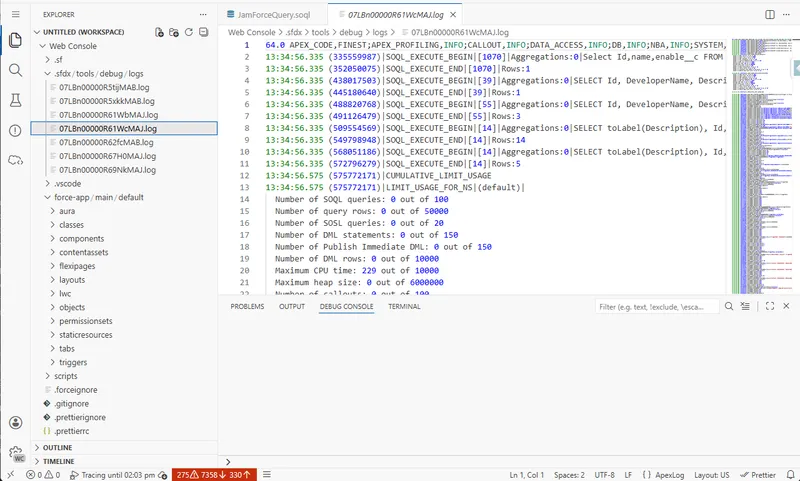
Salesforce Web Console debug logs view, showing log details and trace flag controls for the current user.
- SOQL execution and Query Plan Inspector
You can run SOQL queries from within Web Console and view results in a formatted grid, with the option to inspect query performance using Query Plan to understand index usage and cost. For deeper query tuning, see SOQL performance optimisation techniques. For filter design, advanced filtering patterns is the better companion guide.
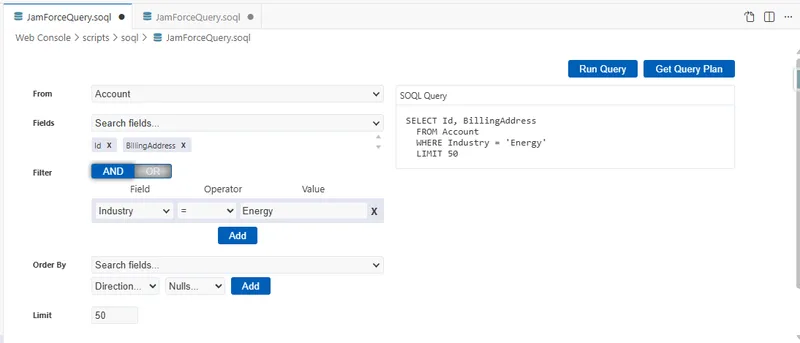
Salesforce Web Console SOQL builder, with inline query results and Query Plan inspection for tuning selectivity.
- Anonymous Apex execution
Web Console lets you run Anonymous Apex scripts without creating a class, which is ideal for one-off checks, data fixes, or probing a method’s behaviour with real org data. For background on execution behaviour, see asynchronous Apex fundamentals. For release discipline around quick fixes, testing and deployment practices provides the right guardrails.
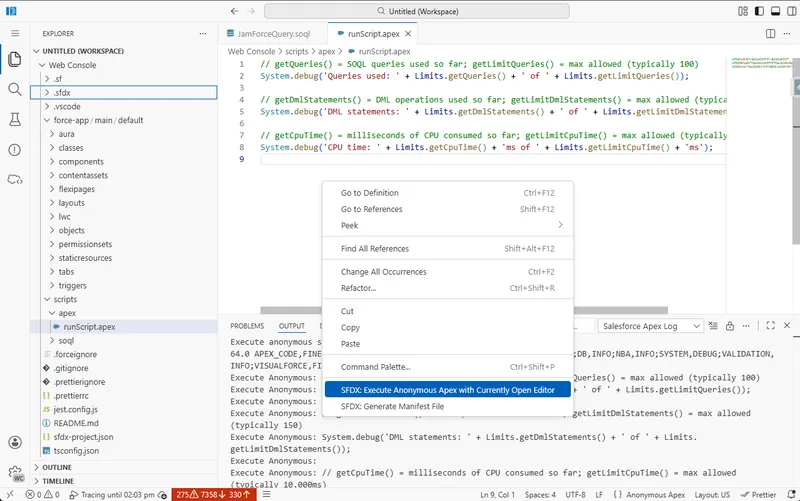
Salesforce Web Console Anonymous Apex panel, used for fast one-off validation and targeted data checks in lower environments.
-
Apex tests and code coverage The Apex Tests view can run one test method, one class, or all Apex tests. Failed results link back to the relevant source, and the optional
retrieve-test-code-coverageworkspace setting adds class and trigger coverage to the results. Salesforce documents the complete workflow in Test Apex Code. -
Quick Apex edits
In supported non-production orgs, you can open Apex classes and triggers from context (for example, from Setup pages) and make focused inline edits to address a specific defect or tweak behaviour. -
Org-aware navigation
Web Console is org-aware: you can navigate metadata in an integrated browser so that Apex, queries, and configuration live in the same place you’re already working, rather than in an external project. -
Modern, VS Code–style UI
The interface is modelled on a lightweight VS Code-in-the-browser experience, with an activity bar, side panels, editors, and output panels that feel familiar to developers while remaining approachable for admins.
These features are intentionally scoped to high-frequency investigative tasks: understanding a failure, tracing it to source, checking query behaviour, making a targeted fix, and validating the outcome.
🛡️ Environment Guardrails: Balancing Power and Safety
Section titled “🛡️ Environment Guardrails: Balancing Power and Safety”Web Console is designed to make developers faster without weakening Salesforce’s long-standing safety model for production. Salesforce documents a specific guardrail here: Apex is read-only in production. Do not assume that statement automatically describes every non-Apex metadata type the workspace can surface; assess the permissions and deployment behaviour of those types separately.
| Environment | Apex Editing Capability | Rationale |
|---|---|---|
| Production orgs | Apex is read-only | Developers can inspect production Apex and logs, but must use governed deployment mechanisms (for example, change sets, Metadata API, or CI/CD) to change Apex. |
| Non-production orgs (sandboxes, developer orgs, scratch orgs) | Apex editing and deployment are available within the supported beta scope | Developers can make targeted changes, run tests, and validate the result in an isolated environment. |
This balance preserves the integrity of live systems while still giving teams the speed they want when working in lower environments. It also lines up with the deployment discipline covered in sandbox strategy and change management. For the developer side of that workflow, see Salesforce testing and deployment fundamentals.
⚙️ Enabling Web Console (Beta)
Section titled “⚙️ Enabling Web Console (Beta)”Web Console (Beta) is off by default and must be explicitly enabled by an administrator, which gives each org control over when and how to adopt it. During open beta, enablement is a simple org-level setting.
Salesforce’s Summer ‘26 release note describes Web Console as available to all orgs at no cost, and the current FAQ explicitly includes Free and Starter. Availability does not mean feature parity: functionality varies by edition, and Professional Edition has restricted code and feature access.
- Log in as a system administrator (or a user with equivalent Setup access).
- In Setup, enter Development in the Quick Find box, then select Web Console (Beta).
- Switch Enable Web Console (Beta) to Active.
- Close Setup and wait a few seconds for the gear menu to update. Refresh the browser if the Web Console (Beta) entry does not appear.
Once enabled, Web Console relies on the user’s existing permissions for metadata, logs, code, and data. It does not independently grant access to those resources, but API Access Control introduces an additional query permission that deserves a separate security decision.
For the official setup and usage guidance, see the Salesforce Web Console documentation.
🚀 Launching Web Console in Context
Section titled “🚀 Launching Web Console in Context”After Web Console is enabled, there are several entry points, each reinforcing the “in-context” philosophy.
-
From the gear icon
From most Salesforce pages, you can open Web Console directly via the gear icon → Web Console (Beta), which launches the IDE in a new tab or browser window. -
From Setup pages
On context-rich pages like Apex Jobs, Apex Classes, or Apex Triggers, you can open the relevant code directly in Web Console, skipping the manual step of locating the file by name. -
From the Web Console menu Once enabled, the Web Console entry appears in the Setup gear menu. If the option is missing, confirm the org setting and the user’s permissions before assuming the edition is unsupported.
This design ensures that the IDE meets the developer where the problem is already visible, instead of forcing them to reconstruct the scenario in a separate tool.
🔍 A Practical Example: Debugging an Apex Job Failure
Section titled “🔍 A Practical Example: Debugging an Apex Job Failure”Apex job failures are a flagship scenario Salesforce uses to illustrate the value of Web Console. Imagine a batch job failing in a sandbox:
- A developer starts on the Apex Jobs page in Setup, where the failed job is listed with its error message.
- From there, they open the related Apex class in Web Console (Beta), landing directly in the code that drives the job.
- Inside Web Console, they enable logging for their user so that the next run produces detailed debug logs.
- They re-run the scenario, then open the latest log in Web Console to inspect the execution path and jump from the stack trace to the exact line of code causing the failure.
- They apply a focused fix in the inline editor, save it back to the sandbox, execute tests or rerun the job, and confirm that it completes successfully, all without leaving the browser.
This flow mirrors how real troubleshooting happens: work begins at the point of failure, and Web Console stays with the developer from diagnosis through validation.
⚖️ Where Web Console Fits — and Where It Does Not
Section titled “⚖️ Where Web Console Fits — and Where It Does Not”Understanding where Web Console shines and where it is intentionally limited, helps teams decide how to fit it into their toolchain.
| Need | Better choice | Why |
|---|---|---|
| Inspect a log, run SOQL, or execute Anonymous Apex quickly | Web Console | Fast, org-aware and close to the failing workflow. |
| Make a small Apex correction in a sandbox | Web Console | Focused inline editing avoids local setup. |
| Build a multi-file feature | VS Code or Agentforce Vibes IDE | Project structure, source tracking and richer tooling matter. |
| Work through Git and CI/CD | Source-driven IDE workflow | Web Console has no version-control workflow and edits the org directly. |
| Change Apex in production | Governed deployment pipeline | Web Console keeps Apex read-only in production. |
| Standardise a team’s primary IDE | Evaluate after beta | Beta behaviour, support and scope can still change. |
My practical read is that Web Console is a troubleshooting companion, not the new centre of a source-driven delivery process. It shortens investigation loops; it does not remove the need to retrieve the final change into source control, review it, test it, and deploy it through the team’s normal pipeline.
🏁 Conclusion
Section titled “🏁 Conclusion”Web Console is useful precisely because its scope is smaller than a full IDE. Use it to shorten the path from an org symptom to evidence and a focused lower-environment fix. Keep Git, automated tests, peer review and deployment controls as the path to production, and reassess the tool when Salesforce moves it beyond beta or changes that boundary.