
SOQL: FOR VIEW, FOR REFERENCE, and FOR UPDATE

Learn how FOR VIEW, FOR REFERENCE, and FOR UPDATE enhance SOQL for usage tracking and safe concurrent updates in Salesforce.
When you move beyond simple read-only queries (as covered in SOQL fundamentals) and start building custom UIs, integrations, and complex Apex logic (see integrating SOQL with Apex), you sometimes need SOQL to do more than just “return records.” You may want Salesforce to track that records were viewed or referenced, or you might need to lock records while your code updates them to prevent conflicts.
In this guide, we’ll explore three advanced SOQL clauses and when to use each one effectively:
FOR VIEWFOR REFERENCEFOR UPDATE
👀 FOR VIEW
Section titled “👀 FOR VIEW”🧭 What FOR VIEW does
Section titled “🧭 What FOR VIEW does”The optional FOR VIEW clause tells Salesforce that the retrieved records have been viewed by the current user. When you add FOR VIEW to a SOQL query, Salesforce:
- Updates the
LastViewedDatefield for each returned record. - Inserts a row into the
RecentlyViewedobject so the record appears in Recent Items and other “recently viewed” experiences for that user.
🧪 Basic FOR VIEW example
Section titled “🧪 Basic FOR VIEW example”SELECT Id, NameFROM ContactLIMIT 1FOR VIEWThis query retrieves one Contact record and simultaneously updates its LastViewedDate while adding it to the current user’s RecentlyViewed list. It behaves as if the user had opened that Contact’s standard record page in the Salesforce UI.
✅ When to use FOR VIEW
Section titled “✅ When to use FOR VIEW”Use FOR VIEW when:
- You have a custom interface (LWC, Aura, Visualforce, external app) that shows full record details to a user, and
- You want Salesforce’s Recent Items,
LastViewedDate, and related “recent” behaviours to reflect that the record was actually viewed.
Avoid using FOR VIEW in background jobs, batch processes, or any automated context where no human is actually viewing the records. Adding FOR VIEW in these situations pollutes Recent Items and creates misleading “viewed” history for users, since Salesforce will treat the query as if a person opened the record in the UI.
🔗 FOR REFERENCE
Section titled “🔗 FOR REFERENCE”🧾 What FOR REFERENCE does
Section titled “🧾 What FOR REFERENCE does”The FOR REFERENCE clause tells Salesforce that the retrieved records are being referenced in the context of something the user is viewing. When you add FOR REFERENCE to a SOQL query, Salesforce:
- Updates the
LastReferencedDatefield for each returned record. - Inserts rows into
RecentlyViewed, similar toFOR VIEW.
In the standard UI, Salesforce uses “referenced” when a record is involved indirectly, for example related list records or records displayed alongside a primary record.
In the standard UI, when a user opens an Account, Salesforce can implicitly mark associated Contacts, Opportunities, and Owner records as referenced, updating LastReferencedDate and adding them to RecentlyViewed. In custom UIs, FOR REFERENCE is how you intentionally reproduce that same usage-tracking semantics.
📌 Basic FOR REFERENCE example
Section titled “📌 Basic FOR REFERENCE example”SELECT Id, NameFROM ContactLIMIT 1FOR REFERENCEThis query retrieves one Contact record and updates its LastReferencedDate, as well as adding it to the user’s RecentlyViewed data. It is treated as a supporting record that was involved in the user’s activity.
🎯 When to use FOR REFERENCE
Section titled “🎯 When to use FOR REFERENCE”Use FOR REFERENCE when:
- Your UI loads supporting or related records to a primary record the user is viewing (for example, related Contacts while viewing an Account).
- You want those related records to appear in Recent Items and have accurate
LastReferencedDatevalues.
Avoid using FOR REFERENCE in system-only or headless integrations where no real user is actually viewing the related records. It’s also not appropriate for bulk jobs that read large volumes of data purely for processing. As with FOR VIEW, using this clause outside a genuine user-driven context creates unnecessary noise in Recent Items and leads to inaccurate usage tracking.
🆚 FOR VIEW vs FOR REFERENCE
Section titled “🆚 FOR VIEW vs FOR REFERENCE”Both clauses update usage-tracking fields and create RecentlyViewed entries, but they signal different kinds of interaction. FOR VIEW represents a direct view (the equivalent of opening a record page), while FOR REFERENCE marks records that were indirectly involved, such as related list records or lookup targets. A simple way to choose between them is this:
- If your UI is effectively replacing the standard record page, use
FOR VIEW. - If you’re loading supporting data (related lists, lookups, helper records) alongside a primary record, use
FOR REFERENCE.
🕘 RecentlyViewed behaviour and limitations
Section titled “🕘 RecentlyViewed behaviour and limitations”Both FOR VIEW and FOR REFERENCE ultimately feed into the RecentlyViewed object, which powers Recent Items, search suggestions, and the various “recently viewed” lists throughout the UI. Salesforce updates this data whenever a user views or references records in the interface, or when your SOQL queries include FOR VIEW or FOR REFERENCE.
Treat FOR VIEW and FOR REFERENCE as non-idempotent usage events (that is, each query can update LastViewedDate/LastReferencedDate and churn recently viewed state, even if run repeatedly on the same records).
Salesforce manages the size and lifecycle of RecentlyViewed behind the scenes. Current Salesforce documentation says it is periodically truncated to 200 records and retained for 90 days, but you should still avoid building business logic that depends on those limits unless the current RecentlyViewed object reference guarantees them. Treat it as user-experience state, not a durable audit log.
Because this data directly shapes the user experience, from auto-complete to recent-record lists, Salesforce recommends using these clauses only when you’re confident the user genuinely viewed or referenced the records.
🔒 Locking records with FOR UPDATE
Section titled “🔒 Locking records with FOR UPDATE”While FOR VIEW and FOR REFERENCE deal with tracking how records are used, FOR UPDATE is about record locking. In Apex, you can append FOR UPDATE to an inline SOQL query to lock the returned rows, preventing other transactions from modifying them until your transaction finishes.
FOR UPDATE ensures exclusive access to the selected records so your transaction can safely read, compute, and write without interference from other concurrent processes.
💻 Basic FOR UPDATE example (Apex only)
Section titled “💻 Basic FOR UPDATE example (Apex only)”Account[] accts = [ SELECT Id, Name FROM Account WHERE BillingCountry = 'New Zealand' LIMIT 10 FOR UPDATE];In this example, the SOQL query retrieves up to ten Account records and immediately places a lock on them. That lock stays in place for the entire Apex transaction, ensuring no other process can modify those rows until your code finishes running. While they are locked:
- Other transactions cannot update these rows.
- Your code can safely perform additional logic and then update them, knowing they won’t be changed mid-transaction by another process.
- The locks are automatically released when the transaction completes (either commit or rollback).
🚧 Restrictions and considerations
Section titled “🚧 Restrictions and considerations”FOR UPDATE comes with a few important limitations to be aware of:
- It’s only supported in Apex (inline SOQL written inside
[ ], or dynamic SOQL viaDatabase.query()). It applies wherever Apex executes, including Apex REST endpoints, since the clause is part of the query itself rather than the transport. - It cannot be combined with an
ORDER BYclause in the same statement. - It’s not available outside Apex, since it’s a SOQL clause: declarative contexts like Flow’s Get Records element, and other query languages like GraphQL, don’t execute inline SOQL and have no equivalent.
You should also be careful about how long you hold locks; long-running logic, large loops, or heavy contention can lead to “unable to obtain exclusive access to this record” errors for other users or processes.
Before you add row locking, it also helps to review SOQL performance optimisation patterns so your filters stay selective and lock scopes remain small.
Salesforce recommends using row locks thoughtfully, and the “Locking Records” section of the Apex Developer Guide offers deeper guidance and patterns for working safely with concurrent updates.
🧰 When to use FOR UPDATE
Section titled “🧰 When to use FOR UPDATE”You should reach for FOR UPDATE only when there’s a real chance that multiple processes might touch the same records at the same time. It’s designed for situations where you need exclusive access to a record while your logic runs.
Use FOR UPDATE when you have genuine concurrency risk, such as:
- Work-queue patterns: pulling the “next” record to process (Cases, Leads, custom work items).
- Aggregated updates: where your logic reads a record, calculates new values, and then writes them back, and you must ensure no one else changes the record in the meantime.
- Sequential assignment: ensuring only one user or process can claim a given record at a time.
Avoid FOR UPDATE when:
- You’re only reading data with no updates planned.
- Your transaction is long-running.
- You’re processing very large batches of records that may compete with heavy user activity.
- You need to make an external callout between reading and updating the records. Salesforce releases
FOR UPDATElocks when the callout starts, so another transaction can change the rows before your DML. Keep the lock-dependent read, calculation, and DML together in a short database transaction, or re-query after the callout before making decisions from current data.
Used correctly, FOR UPDATE can increase reliability; used excessively, it can become a source of contention.
✅ Conclusion
Section titled “✅ Conclusion”These three clauses extend SOQL beyond basic querying and give you tools for tracking how records are used and managing safe, concurrent updates:
FOR VIEW: marks records as viewed, updatingLastViewedDateand adding them toRecentlyViewedfor the user.FOR REFERENCE: marks records as referenced, updatingLastReferencedDateand adding supporting records toRecentlyViewed.FOR UPDATE: locks records in Apex so your transaction can safely read and update them without interference.
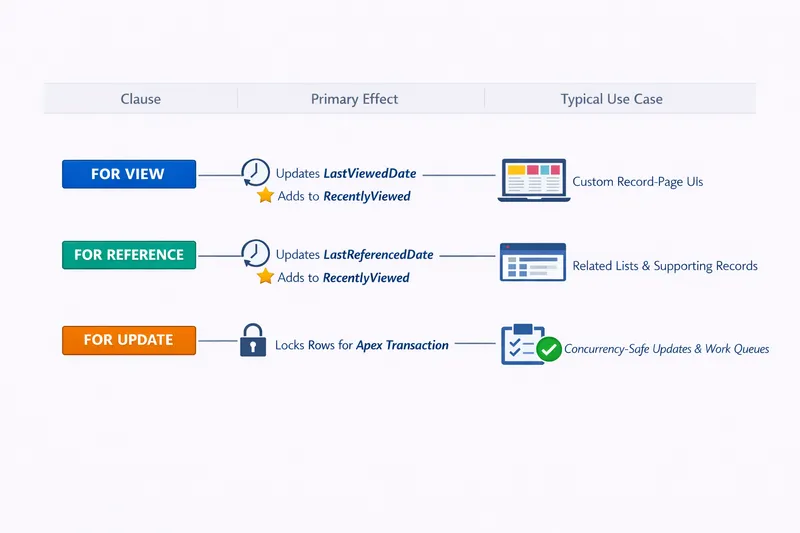
Together, they help you build custom UIs that respect Salesforce’s usage-tracking model and write Apex logic that handles concurrency safely without data collisions.
The next stop on the advanced learning path is Dynamic SOQL, where you build query strings at runtime instead of fixing them at compile time.