
SOQL: A Guide to Date Functions

In Salesforce, reporting and automation often depend on slicing data by year, month, hour, or fiscal period. Date literals handle relative ranges like LAST_MONTH; date functions let you extract parts of a timestamp, convert time zones, filter on explicit calendar values, and group results in GROUP BY clauses.
This guide will walk you through some of the most commonly used date functions in SOQL, providing practical examples and tips to help you leverage these tools effectively. By mastering these functions, you can enhance your ability to analyse date and time data, create more precise reports, and ultimately make better data-driven decisions.
🧮 Common Date Functions in SOQL
Section titled “🧮 Common Date Functions in SOQL”Here are some of the most commonly used date functions, given a CreatedDate value that a user in Auckland sees displayed as 2024-08-27T10:24:48.978+12:00. That local timestamp is stored and evaluated as 2024-08-26T22:24:48.978Z in UTC, which is what these functions actually see unless you wrap the field in convertTimezone() (covered next):
- CALENDAR_YEAR(): Extracts the calendar year from a date and would produce
2024. - CALENDAR_MONTH(): Extracts the calendar month from a date and would produce
8. - DAY_IN_MONTH(): Extracts the day of the month from a date and would produce
26, not the27the user sees on screen. - DAY_IN_WEEK(): Extracts the day of the week from a date and would produce
2. Salesforce numbers these 1 for Sunday through 7 for Saturday, so2is the Monday in UTC, even though the user’s local calendar shows Tuesday the 27th. - DAY_IN_YEAR(): Extracts the day of the year from a date and would produce
239. - WEEK_IN_YEAR(): Extracts the week of the year from a date and would produce
35. - HOUR_IN_DAY(): Extracts the hour from a date/time field and would produce
22, not the10on the user’s screen. - MINUTE_IN_HOUR(): Extracts the minute from a date/time field and would produce
24.
💻 Filtering by extracted values
Section titled “💻 Filtering by extracted values”SELECT Id, Name, CreatedDateFROM AccountWHERE CALENDAR_YEAR(CreatedDate) = 2023OR DAY_IN_WEEK(CreatedDate) = 4This returns Accounts where CreatedDate falls in calendar year 2023 or on a Wednesday (when DAY_IN_WEEK returns 4 for Wednesday).
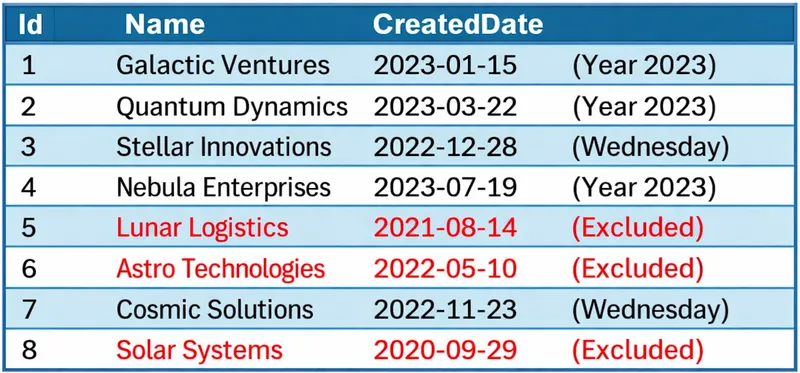
🌍 Time Zone Conversion
Section titled “🌍 Time Zone Conversion”DateTime values are returned in UTC from the API. To interpret hours in the running user’s time zone, wrap the field with convertTimezone() inside a date function such as HOUR_IN_DAY(). That is the position Salesforce documents for it, rather than as a standalone conversion in the SELECT list:
SELECT HOUR_IN_DAY(convertTimezone(CreatedDate)), SUM(Amount)FROM OpportunityGROUP BY HOUR_IN_DAY(convertTimezone(CreatedDate))This groups opportunities by the hour they were created in the user’s time zone and sums Amount per hour.
📋 Date Formats in Queries
Section titled “📋 Date Formats in Queries”Salesforce expects fixed formats when you compare against explicit dates rather than literals:
| Type | Format | Example |
|---|---|---|
| Date | YYYY-MM-DD |
2024-08-27 |
| DateTime | YYYY-MM-DDThh:mm:ss+hh:mm |
2024-08-27T10:00:00+12:00 |

📅 Filtering by a specific date
Section titled “📅 Filtering by a specific date”CreatedDate is a DateTime field. You can compare it to a bare date like 2024-08-27, but Salesforce reads that date as midnight GMT, so the operator you use matters. With the relational operators (>, <, >=, <=) a bare date works fine as a range boundary: WHERE CreatedDate >= 2024-08-27 returns everything from midnight GMT that day onward. With =, though, it only matches records stamped at exactly 00:00:00 GMT, so it almost never captures a whole day. To match a single calendar day regardless of the time portion, wrap the field in DAY_ONLY(), which returns a Date you can compare to a plain date value:
SELECT Id, Name, CreatedDate FROM Account WHERE DAY_ONLY(CreatedDate) = 2024-08-27Returns Accounts whose CreatedDate falls on 27 August 2024, in UTC, regardless of the time of day it was created. If you are filtering a true Date field such as CloseDate on Opportunity, you can compare it to the plain date format directly, no DAY_ONLY() needed.
🚫 Date Calculations Without Arithmetic
Section titled “🚫 Date Calculations Without Arithmetic”Unlike SQL, SOQL does not support date arithmetic in expressions (for example, TODAY - 30). Use date literals to express the period directly. To target exactly one day 30 days ago:
SELECT Id, Name, CloseDateFROM OpportunityWHERE CloseDate = N_DAYS_AGO:30Assuming today is 27 August 2024, this returns opportunities with a CloseDate on 28 July 2024. For a wider closed interval, combine two single-day boundaries instead of comparing against overlapping rolling ranges:
SELECT Id, Name, CloseDateFROM OpportunityWHERE CloseDate >= N_DAYS_AGO:60AND CloseDate <= N_DAYS_AGO:30This makes both edges visible to the reviewer and avoids the easily missed fact that LAST_N_DAYS:n includes today.
📊 Grouping by Date
Section titled “📊 Grouping by Date”Date functions shine in aggregate queries alongside GROUP BY.
📆 Calendar year and month
Section titled “📆 Calendar year and month”SELECT CALENDAR_YEAR(CreatedDate), CALENDAR_MONTH(CreatedDate), COUNT()FROM OpportunityGROUP BY CALENDAR_YEAR(CreatedDate), CALENDAR_MONTH(CreatedDate)ORDER BY CALENDAR_YEAR(CreatedDate), CALENDAR_MONTH(CreatedDate)This query groups opportunities by calendar year and month, allowing you to analyse trends in opportunity creation over time.
💰 Fiscal year and quarter
Section titled “💰 Fiscal year and quarter”SELECT FISCAL_YEAR(CloseDate), FISCAL_QUARTER(CloseDate), SUM(Amount)FROM OpportunityWHERE StageName = 'Closed Won'GROUP BY FISCAL_YEAR(CloseDate), FISCAL_QUARTER(CloseDate)This query groups closed-won opportunities by fiscal year and quarter, providing insights into revenue performance across different fiscal periods.
For further reading, see the official Salesforce date functions documentation.
✅ Conclusion
Section titled “✅ Conclusion”Date functions complement date literals: literals express rolling and named periods; functions extract components, respect time zones via convertTimezone(), and power GROUP BY reporting. Use explicit date formats when you need a fixed day, lean on literals for relative windows, and validate fiscal grouping against your org’s fiscal year settings.
🔜 Your Next Steps
Section titled “🔜 Your Next Steps”- See the time-zone shift: Run a
HOUR_IN_DAY()grouping with and withoutconvertTimezone()and watch the buckets move. - Chart a trend: Group opportunities by
CALENDAR_YEARandCALENDAR_MONTHto see creation volume over time. - Match a specific day: Filter a
Datefield againstYYYY-MM-DD, then use explicit lower and upperDateTimeboundaries for the same day onCreatedDate.
Next, move on to SOQL: How to use TYPEOF to handle polymorphic relationships, where one lookup can point to different object types.