
SOQL: Filtering with the WHERE Clause

In the previous article, SOQL Fundamentals, you learned the core SOQL pattern: select specific fields from a specific object. This next step, filtering with WHERE, is where SOQL becomes genuinely useful in day-to-day Salesforce work.
After years of debugging failed automations and data quality issues, I can say this confidently: most query problems are filtering problems. Queries return too many records, miss critical records, or behave unpredictably because conditions were too broad, too strict, or not designed for NULL values.
The WHERE clause is how you control that behaviour. It lets you define exactly which records should be returned based on values, patterns, and logical conditions. This is essential when building reliable Flows, Apex, integrations, and reporting checks.
In this guide, you’ll learn the core comparison operators, pattern matching with LIKE, and practical NULL handling patterns, so your queries return the right records for the right reason.
🔍 Basic Comparison Operators in SOQL
Section titled “🔍 Basic Comparison Operators in SOQL”Comparison operators are the foundation of practical SOQL filtering. They let you match exact values, exclude values, and compare numeric thresholds so your queries return only the records that meet your business criteria. Salesforce documents the full set of comparison operators in the SOQL reference.
🟰 Equals Operator (=)
Section titled “🟰 Equals Operator (=)”Text field filtering
Section titled “Text field filtering”SELECT Name, Industry FROM Account WHERE Industry = 'Technology'This query selects all records from the Account object where the Industry field is exactly ‘Technology’. Note that string values are enclosed in single quotes. In practice, I use this pattern constantly when validating picklist data after migrations or checking whether a Flow has stamped the correct value on a record.
Number field filtering
Section titled “Number field filtering”SELECT Name, Amount FROM Opportunity WHERE Amount = 50000This query selects records from the Opportunity object where the Amount field is exactly 50,000. Unlike strings, numeric values are not wrapped in quotes. Currency fields like Amount follow Salesforce’s multi-currency rules when your org has multi-currency enabled.
Boolean field filtering
Section titled “Boolean field filtering”This example assumes that your org has a custom checkbox field named IsActive__c on Account.
SELECT Name FROM Account WHERE IsActive__c = trueThis query selects all records from the Account object where the IsActive__c field is true. In Salesforce, a checkbox field like IsActive__c is a type of boolean field that can only have two possible values: true (checked) or false (unchecked). Checkbox fields are not stored as NULL, and default to false when not explicitly set to true. One important exception to remember is that = NULL behaves specially for boolean fields in SOQL and matches false values.
📈 Greater Than (>)
Section titled “📈 Greater Than (>)”SELECT Name, Amount FROM Opportunity WHERE Amount > 100000This query selects all records from the Opportunity object where the Amount is greater than 100,000. You can similarly use the Less Than (<) operator to retrieve records below a specified value. When combining threshold filters with ORDER BY and LIMIT, you can quickly surface your highest-value open deals for pipeline reviews.
📉 Less Than or Equal To (<=)
Section titled “📉 Less Than or Equal To (<=)”SELECT Name, AnnualRevenue FROM Account WHERE AnnualRevenue <= 1000000This query selects records from the Account object where the AnnualRevenue is less than or equal to 1,000,000. This means it retrieves accounts with an annual revenue that is either exactly 1,000,000 or any amount less than that. You can use the greater than or equal to (>=) operator when retrieving records that match or exceed the specified amount.
🚫 Not Equals (!=)
Section titled “🚫 Not Equals (!=)”SELECT Name FROM Contact WHERE Department != 'Sales'This query selects records from the Contact object where the Department is not equal to ‘Sales’. This means it retrieves Contacts whose department is anything other than ‘Sales’. If the Department is ‘Sales’, those records will be excluded from the results.
🃏 Using the LIKE Operator with Wildcards in SOQL
Section titled “🃏 Using the LIKE Operator with Wildcards in SOQL”The LIKE operator in SOQL is used for pattern matching in text fields. SOQL supports two wildcards: % matches zero or more characters, and _ matches exactly one character. LIKE follows the same case-sensitivity rule as other string comparisons: it is case-insensitive for most fields and case-sensitive for unique fields configured as case-sensitive.
➕ Starts With
Section titled “➕ Starts With”SELECT Name FROM Account WHERE Name LIKE 'Acme%'This query selects records from the Account object where the Name field starts with ‘Acme’. The % wildcard is used to match any sequence of characters following ‘Acme’. It would match names like ‘Acme Corporation’, ‘Acme Inc.’, or ‘Acme Solutions’. This type of query helps in quickly identifying and grouping records that share a common starting pattern. From a performance perspective, starts-with patterns are the most efficient LIKE usage because Salesforce can leverage field indexes.
➖ Ends With
Section titled “➖ Ends With”SELECT Email FROM Contact WHERE Email LIKE '%@company.com'This query selects records from the Contact object where the Email field ends with ‘@company.com’. The % wildcard is used to match any sequence of characters preceding ‘@company.com’. For instance, it would match emails like ‘[email protected]’ or ‘[email protected]’, helping you target communications or analysis to a particular group.
🔗 Contains
Section titled “🔗 Contains”SELECT Name FROM Account WHERE Name LIKE '%Corp%'This query selects records from the Account object where the Name field contains ‘Corp’. The % wildcard is used before and after ‘Corp’ to match any sequence of characters surrounding it. This allows you to find accounts with names that include ‘Corp’ anywhere within them, such as ‘Global Corp’, ‘TechCorp Solutions’, or ‘CorpTech Innovations’.
🔡 Single-Character Matching (_)
Section titled “🔡 Single-Character Matching (_)”SELECT Name FROM Account WHERE Name LIKE 'Acme-___'The _ wildcard matches exactly one character, so this query matches ‘Acme-’ followed by precisely three more characters, such as ‘Acme-NZ1’ or ‘Acme-AU2’, but not ‘Acme-NZ’ (too short) or ‘Acme-AU10’ (too long). Reach for _ when a value has a fixed shape or length; reach for % when the length is open-ended.
🔧 Escape Literal Wildcards
Section titled “🔧 Escape Literal Wildcards”Use a backslash when % or _ is part of the value you want to match rather than a wildcard. For example, this query finds product codes beginning with the literal characters SKU_:
SELECT Name, ProductCode FROM Product2 WHERE ProductCode LIKE 'SKU\_%'Here, \_ matches a literal underscore while the final % still matches zero or more characters. Use \% when you need to match a literal percent sign.
🫙 Handling NULL Values in SOQL
Section titled “🫙 Handling NULL Values in SOQL”In SOQL, NULL represents the absence of a value. Test for it explicitly with = NULL or != NULL; do not assume that a negative filter excludes blank fields.
❓ Find Records with NULL Values
Section titled “❓ Find Records with NULL Values”SELECT Name, Email FROM Contact WHERE Email = NULL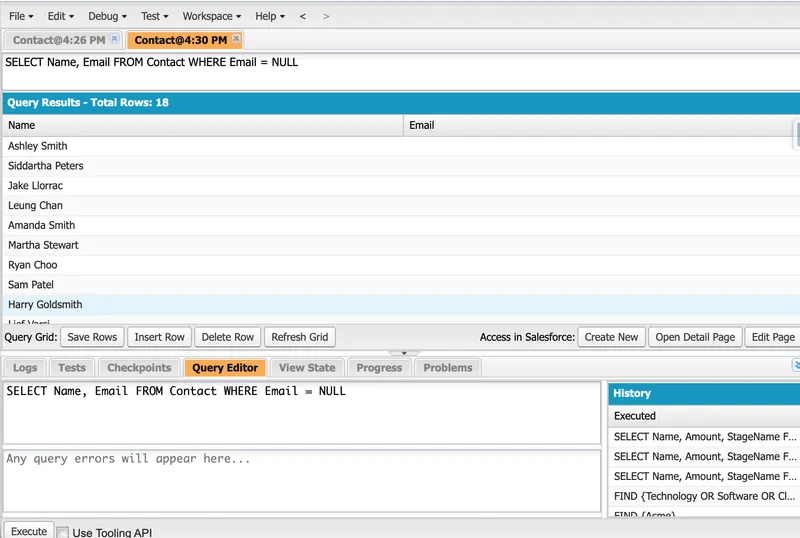
This query selects records from the Contact object where the Email field is NULL. In Salesforce, a NULL value indicates that the field has no data entered. By filtering for NULL values, you can focus on records that may require additional data entry or follow-up to complete missing information.
❗ Find Records with Non-NULL Values
Section titled “❗ Find Records with Non-NULL Values”SELECT Name FROM Contact WHERE Email != NULLThis query selects records from the Contact object where the Email field is not NULL. It retrieves contacts that have an email address specified. This is useful when you want to focus on records that have complete information in a particular field, such as ensuring that all contacts in a marketing campaign have valid email addresses for communication.
🧼 Blank Text Fields Are Stored as NULL
Section titled “🧼 Blank Text Fields Are Stored as NULL”Persisted sObject string fields do not have a separate empty-string state. Salesforce stores a blank string field as NULL; the Apex Developer Guide documents that these fields store NULL rather than an empty string. For a field such as Contact.Email, use Email = NULL alone. Adding OR Email = '' is redundant and makes the query’s intent harder to read.
By understanding how to handle NULL values in SOQL, you can more effectively manage and analyse your Salesforce data, ensuring that your queries return accurate and meaningful results.
✅ Conclusion
Section titled “✅ Conclusion”Filtering is what turns SOQL from basic syntax into a practical, high-impact Salesforce skill. When you can apply comparison operators, LIKE, and NULL checks with confidence, your queries become more accurate, your automations become more reliable, and your reporting becomes more trustworthy.
This is the foundation for writing queries that support real business decisions, not just technical correctness. Keep practising these patterns in your day-to-day admin and development work, and you’ll spend less time troubleshooting data issues and more time delivering outcomes.
For more advanced topics and official documentation, check out the Salesforce SOQL Documentation.
🔜 Your Next Steps
Section titled “🔜 Your Next Steps”- Practice with real records: Run each
WHEREexample in Developer Console or Salesforce Inspector and validate the result count. - Test edge cases: Check how your filters behave with blank text fields,
NULLvalues, and mixed data quality. - Apply in automation: Reuse these filtering patterns in Flows, Apex queries, and report validation checks.
Next, move on to SOQL: Advanced Filtering Techniques to learn how to combine conditions with AND, OR, NOT, IN, and grouped logic for more complex query requirements.
If your filter depends on a calculation between fields, read the SOQL FORMULA() article for its syntax, availability boundaries, and evaluation examples before choosing an approach.