
SOSL Syntax Overview
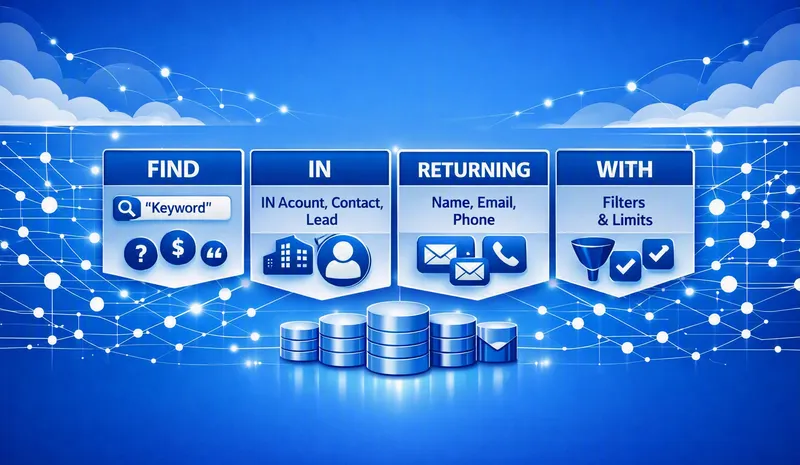
This is part two of the SOSL series. The introduction covers what SOSL is and when to choose it over SOQL; this article works through the syntax clause by clause.
SOSL (Salesforce Object Search Language) provides powerful text-based search capabilities across multiple Salesforce objects and fields. While SOQL is designed for structured queries where you know exactly where your data resides, SOSL excels when you need to search broadly across the platform.
This article focuses on the syntax structure and core components of SOSL queries.
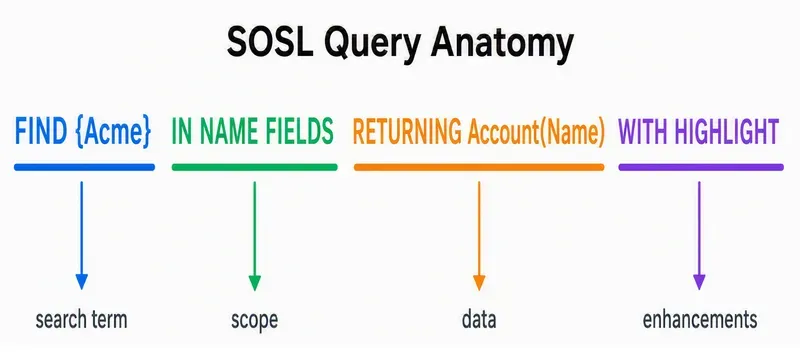
🔎 Find Clause (Required)
Section titled “🔎 Find Clause (Required)”The FIND {SearchQuery} clause is the only required component of a SOSL query, specifying the text to search for. The syntax differs slightly between Apex and the API: in Apex, the search term is enclosed in single quotes, while in the API, it is enclosed in curly brackets:
FIND {SearchQuery}⚡ Apex
Section titled “⚡ Apex”FIND 'SearchQuery'🔤 How SOSL Single Word Matching Actually Works
Section titled “🔤 How SOSL Single Word Matching Actually Works”Word tokenisation and the search index: SOSL splits indexed record content into searchable tokens. FIND {John} searches for the term John; it does not mean “anything beginning with John”. To include Johnson and Johnny, make that intent explicit with FIND {john*}. Punctuation and language-specific tokenisation can affect where token boundaries fall.
🧩 Search Query Components
Section titled “🧩 Search Query Components”- Single words: You can search for individual words using the FIND clause. For example,
FIND {test}orFIND {hello}will search for these specific words across the specified fields. - Phrases: To search for exact phrases, enclose them in double quotes. For instance,
FIND {"john smith"}(enclosed in double quotes) will look for the exact phrase “john smith” in the data. - Wildcards: Use wildcards to broaden your search. The asterisk
*matches zero or more characters e.g.FIND {prospect*}would find “prospect”, “prospects”, “prospecting” etc. The question mark?matches exactly one character, soFIND {jo?n}would find “john” or “joan” - Logical Operators: Enhance your search with logical operators like
AND,OR,AND NOTQuotations""and Parentheses(). These allow you to create complex search conditions, such asFIND {Technology AND (Software OR Cloud)}to find records containing “Technology” and either “Software” or “Cloud.” Use quotation marks around search terms to find matches in the order you entered your search terms.
🧠 Search Behaviour Characteristics
Section titled “🧠 Search Behaviour Characteristics”- Search-index features: Depending on the object and search context, the index can apply features such as stemming, synonyms, lemmatisation, and spell correction. Use wildcards when prefix matching is a requirement rather than assuming fuzzy matching will supply it.
- Tokenisation Process: SOSL tokenises content during indexing, creating searchable terms from larger text strings.
- Case-Insensitive: Searching for
Customer,customer, orCUSTOMERreturns identical results.
📂 IN SearchGroup (Optional)
Section titled “📂 IN SearchGroup (Optional)”In an SOSL query, the optional IN SearchGroup clause allows you to specify which types of searchable fields to include. This clause defines the scope of the search, helping to narrow it down and improve both performance and relevance of results. If the IN clause is omitted, SOSL uses ALL FIELDS: the searchable indexed name, email, phone, and text fields, not literally every field on the object. You can choose from name, email, phone, sidebar, or all fields to tailor the search to a specific need.
Here are the different search group options and what they mean:
- ALL FIELDS: This is the broadest group, covering searchable indexed name, email, phone, and text fields on the specified objects. It does not make non-searchable fields part of the index.
- NAME FIELDS: This option restricts the search to name fields, such as the
Namefield on the Account object or theFirstNameandLastNamefields on the Contact object. It is ideal for searches focused on identifying records by their names. - EMAIL FIELDS: This option limits the search to email fields, making it useful for finding records based on email addresses. It is particularly helpful in scenarios where you need to locate contacts or leads using their email information.
- PHONE FIELDS: This option confines the search to phone fields, allowing you to find records based on phone numbers. It is beneficial when searching for contacts or accounts using their phone contact details.
- SIDEBAR FIELDS: Search for valid records as listed in the Sidebar dropdown list. Unlike search in the application, the asterisk
*wildcard isn’t appended to the end of a search string. Sidebar fields refers to fields displayed in the Salesforce sidebar areas of record pages and user interface components.
By using the IN SearchGroup clause with specific search groups, you can tailor your SOSL queries to be more efficient and targeted, ensuring that you retrieve the most relevant results for your search criteria.
📤 RETURNING FieldSpec
Section titled “📤 RETURNING FieldSpec”The RETURNING FieldSpec clause specifies which objects and fields should be returned in the search results. In SOAP and REST it is optional; if omitted, the search returns IDs for searchable matching objects. In Apex it is required. The clause gives you control over the data shape and over object-specific filters, ordering, limits, and offsets.
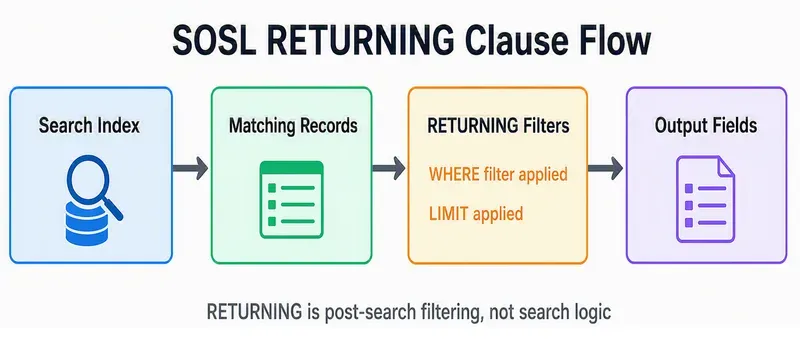
This visualisation shows how RETURNING works as post-search filtering, not search logic.
The RETURNING clause can include WHERE for filtering results, ORDER BY for sorting, LIMIT for setting a maximum, and OFFSET for shallow pagination.
The format is:
RETURNING ObjectTypeName[(FieldList [WHERE] [USING ListView=listViewName] [ORDER BY Clause] [LIMIT n] [OFFSET n])] [, ObjectTypeName [(FieldList [WHERE] [ORDER BY Clause] [LIMIT n] [OFFSET n])]]🔑 Key Components
Section titled “🔑 Key Components”- ObjectTypeName: Specifies the type of object to return in the search results, which can be either standard objects like Account, Contact, or Lead, or custom objects defined in your Salesforce environment. You can list multiple distinct objects separated by commas, allowing you to retrieve data from various sources in a single query. If included, the search will only return objects that are explicitly specified in the
RETURNINGclause, ensuring that the results are focused and relevant to your needs. - FieldList: An optional comma-separated list of fields to return for the specified object. If relationship queries are enabled in the org, supported relationship fields use the same format and depth as SOQL.
- WHERE: Optional filtering clause to restrict the results based on field values for the given object. You must include a
FieldListwith at least one field to useWHERE. If unspecified, the search retrieves matching rows for the object according to the execution context’s access rules. For example:RETURNING Account (Name, Industry WHERE Name LIKE 'test') - ORDER BY: Optional clause to specify result ordering, including ascending/descending order and null handling. Requires a
FieldListwith at least one field. For example:RETURNING Account (Name, Industry ORDER BY Name Desc) - LIMIT n: Optional clause to set the maximum number of records returned for the specific object. Must include a
FieldListwith at least one field. For example:RETURNING CustomObject__c (Name, CustomField__c LIMIT 10) - OFFSET n: An optional clause for result pagination, specifying the starting row offset. It can only be used when querying a single object and must be the last clause specified. It requires a
FieldListwith at least one field. For example:RETURNING Account (Name, Industry OFFSET 100) - USING ListView: Optional clause used to search within a single given object’s list view. Only one list view can be specified. Only the first 2,000 records of the list view are searched, according to the sort order the user has set for the list view. ListView=Recent searches for the most recently accessed items viewed or referenced by the current user.
These components allow you to tailor the RETURNING clause to retrieve specific data efficiently, enhancing the flexibility and precision of your SOSL queries.
There are also data presentation functions: toLabel(field) returns translated values for supported fields, convertCurrency(Amount) converts currency values to the user’s currency when multi-currency is enabled, and FORMAT() applies localised formatting to supported number, date, time, and currency fields. WITH METADATA='LABELS', described below, is the feature that returns display labels for fields.
🔧 WITH (Optional)
Section titled “🔧 WITH (Optional)”SOSL provides numerous advanced filtering options through various WITH clauses that allow you to refine search results, enhance presentation, and apply specific organisational constraints. Here’s a comprehensive overview of the main WITH filter options:
Knowledge Management and Content Filtering
📁 WITH DATA CATEGORY
Section titled “📁 WITH DATA CATEGORY”This optional clause is used in searches of Salesforce Knowledge articles and questions and can be added to a SOSL query to filter all search results that are associated with one or more data categories and are visible to users. It uses operators like AT, ABOVE, BELOW, and ABOVE_OR_BELOW to match categories and their hierarchical relationships.
Syntax: WITH DATA CATEGORY DataCategorySpec [logicalOperator DataCategorySpec2 …]
Where DataCategorySpec consists of:
- groupName: The name of the data category group to filter.
- Operator: The operator to use, such as
ATto query the specified data category,ABOVE/BELOWto query the specified data category and all of its parent categories / subcategories. WhileABOVE_OR_BELOWqueries the specified data category, all of its parent categories, and all of its subcategories. - category: The name of the category to filter. Multiple categories can be included by enclosing them in parentheses, separated by commas.
You can add multiple data category specifiers using the logical operator AND. Other operators, such as OR and AND NOT, are not supported.
A SOSL statement using the WITH DATA CATEGORY clause must also include a RETURNING ObjectTypeName clause, with a WHERE clause that filters on the PublishStatus field.
Example
FIND {tourism} RETURNING KnowledgeArticleVersion (Id, Title WHERE PublishStatus='online') WITH DATA CATEGORY Location__c AT America__cSearch all published (online) Salesforce Knowledge articles with a category from one category group
📄 WITH SNIPPET
Section titled “📄 WITH SNIPPET”The WITH SNIPPET clause is an optional component in a SOSL query that generates contextual text excerpts with highlighted search terms for articles, cases, feeds, and ideas. This feature enhances the search results by providing users with snippets that make it easier to identify relevant content quickly.
Key Features:
- Highlighted Matches: On the search results page, snippets show terms matching the search query highlighted within the context of surrounding text. This helps users quickly identify the content they’re looking for.
- Supported Field Types: Snippets and highlights are generated from fields such as Email, Text, Text Area, Text Area (Long), and Text Area (Rich). They are not generated from fields like Checkbox, Currency, Date, Date/Time, and others.
- Snippet Length: By default, each snippet displays up to approximately 300 characters. You can configure the snippet length between 50 and 1,000 characters using the
target_lengthparameter. For example, atarget_lengthof 120 characters is useful for displaying a snippet of approximately three lines of text in a standard mobile interface. - Limitations: Snippets are not generated for wildcard searches or if the search term does not appear in the first 6,000 characters of the field. Keep the response page at 20 records or fewer when snippets are required; snippets may also be absent when an object contains more than 50 fields.
Example:
FIND {San Francisco} IN ALL FIELDS RETURNING KnowledgeArticleVersion (Id, Title WHERE PublishStatus = 'Online' AND Language = 'en_US') WITH SNIPPET(target_length=120)In this example, the SOSL query returns snippets for articles that match the search term “San Francisco,” with the target snippet length set to 120 characters.
By using the WITH SNIPPET clause, you can enhance the user experience by providing clear and concise excerpts that highlight the most relevant parts of the search results.
Visual Enhancement Filters
✨ WITH HIGHLIGHT
Section titled “✨ WITH HIGHLIGHT”The WITH HIGHLIGHT clause is an optional component in a SOSL query that highlights matching search terms with <mark> tags in the search results. This feature enhances the visibility of relevant content, making it easier for users to identify the information they are looking for.
WITH HIGHLIGHT is supported in SOAP and REST API searches, not inline Apex SOSL.
Key Features:
- Supported Objects: The
WITH HIGHLIGHTclause can be used for searches involving business accounts, campaigns, contacts, custom objects, leads, opportunities, quotes, and users. - Supported Field Types: Highlighted search terms are generated from fields such as Auto Number, Email, Text, Text Area, and Text Area (Long). They are not generated from fields like Checkbox, Compound fields, Currency, Date, Date/Time, and others.
- Limitations: Search terms containing wildcards are not highlighted. Additionally, a maximum of 25 records per entity per SOSL query are highlighted.
- Corrected Spelling: If the original search term doesn’t yield any results due to incorrect spelling, the corrected spelling of the search term is highlighted in the results.
Example:
FIND {Salesforce West}IN ALL FIELDSRETURNING Building__c(Name, BuildingDescription__c)WITH HIGHLIGHTHere, the search term “Salesforce West” is highlighted in the custom field BuildingDescription__c of the custom object Building__c.
By using the WITH HIGHLIGHT clause, you can improve the user experience by making search results more visually accessible, helping users quickly locate the information they need.
Organisational Structure Filters
🏢 WITH DivisionFilter
Section titled “🏢 WITH DivisionFilter”The WITH DivisionFilter clause is an optional component in a SOSL query that filters search results based on division field values in organisations using the divisions feature. This allows you to target specific organisational segments, enhancing the precision of your search results. The clause pre-filters all records based on the specified division before applying other filters. You can specify a division by its name rather than by its ID, simplifying the process of targeting the desired division in your queries. Notably, all searches within a specific division also include the global division.
Example:
FIND {test} RETURNING Account (Id WHERE Name LIKE '%test%'), Contact (Id WHERE Name LIKE '%test%') WITH DIVISION = 'Global'In this example, the SOSL query searches for the term “test” within the specified division “Global,” returning results from both the Account and Contact objects.
By using the WITH DivisionFilter clause, you can effectively narrow down search results to specific divisions within your organisation, improving the relevance and accuracy of the data retrieved.
🌐 WITH NETWORK
Section titled “🌐 WITH NETWORK”The WITH NETWORK clause is an optional component in a SOSL query that filters search results by Experience Cloud (Community) site ID, enabling searches within specific community contexts. This clause is particularly useful for targeting users and feeds associated with particular Experience Cloud sites.
Each Experience Cloud site is represented by a Network ID, and you can filter search results by specifying one or more Network IDs. For filtering by multiple sites, use WITH NETWORK IN ('NetworkId1', 'NetworkId2', ...), and for a single site, use WITH NETWORK = 'NetworkId'. For objects other than users and feeds, search results include matches across all Experience Cloud sites and internal company data, even if network filtering is applied.
Example:
FIND {test}RETURNING User (Id), FeedItem (Id, ParentId WHERE CreatedDate = THIS_YEAR ORDER BY CreatedDate DESC)WITH NETWORK IN ('NetworkId1', 'NetworkId2')This query searches multiple Experience Cloud sites for users and feed items containing the string “test,” sorting feed items from newest to oldest.
By using the WITH NETWORK clause, you can effectively narrow down search results to specific Experience Cloud sites, enhancing the relevance and accuracy of the data retrieved.
Commerce and Product Filtering
💰 WITH PricebookId
Section titled “💰 WITH PricebookId”The WITH PricebookId clause is an optional component in a SOSL query that filters product search results by a specific price book ID. This clause is applicable only to the Product2 object and is particularly useful for narrowing down product searches based on specific pricing structures.
Example:
FIND {laptop}RETURNING Product2WITH PricebookId = '01sxx0000002MffAAE'In this example, the SOSL query searches for products containing the term “laptop” within the specified price book, identified by the price book ID '01sxx0000002MffAAE'.
By using the WITH PricebookId clause, you can effectively filter product search results to align with specific pricing strategies, enhancing the precision and relevance of the data retrieved.
Search Behaviour Controls
📝 WITH SPELL_CORRECTION
Section titled “📝 WITH SPELL_CORRECTION”The WITH SPELL_CORRECTION clause is an optional component in a SOSL query that controls automatic spell correction for search terms. By default, spell correction is enabled (set to true), which helps in correcting misspelled search terms to improve search results. However, disabling spell correction (setting it to false) can be useful for maintaining precise search results, especially for technical terms or proper nouns where exact spelling is crucial.
Example:
FIND {Smyth}IN ALL FIELDSRETURNING Contact(FirstName, LastName)WITH SPELL_CORRECTION = falseSmyth is the kind of term this clause protects. It is a real surname, but it sits close to a far more common spelling, so a correction could quietly send the search somewhere you did not intend. Turning spell correction off keeps the search on the term as typed.
Be precise about what that switches off. Setting the clause to false disables automatic spell correction and nothing else: the search index still tokenises the term and can still apply features such as stemming and synonyms, as described in search behaviour characteristics above. It is a useful control for technical terms and proper nouns that a correction would distort, but it is not an exact-match operator.
🔖 WITH METADATA
Section titled “🔖 WITH METADATA”The WITH METADATA clause is an optional component in a SOSL query that specifies whether additional metadata information is included in the search responses. By default, no metadata is returned. However, by using the LABELS value, you can include the display labels for the fields returned in the search results, providing more context and clarity.
Example:
FIND {Acme}RETURNING Account(Id, Name)WITH METADATA='LABELS'In this example, the SOSL query searches for the term “Acme” and returns results from the Account object, including the display labels for the Id and Name fields in the response.
By using the WITH METADATA clause, you can enhance the search results with additional context, making it easier to understand and interpret the data retrieved.
Analytics and Tracking Filters
The UPDATE VIEWSTAT and UPDATE TRACKING clauses are optional components in a SOSL query that allow you to monitor and report on Salesforce Knowledge article engagement and performance.
👀 UPDATE VIEWSTAT
Section titled “👀 UPDATE VIEWSTAT”The UPDATE VIEWSTAT clause is used to update the view statistics of Salesforce Knowledge articles. This helps determine how many times an article has been viewed, providing insights into article engagement. You can use the language attribute to search by a specific locale, but only one language can be specified per query. Use the Java locale format (e.g., en_US, fr_FR) to specify the language.
Example:
FIND {Title}RETURNING FAQ__kav (Title WHERE PublishStatus="Online" AND language="en_US" AND KnowledgeArticleVersion = 'ka230000000PCiy')UPDATE VIEWSTATIn this example, the SOSL query updates the view statistics for articles with the specified title in US English.
📈 UPDATE TRACKING
Section titled “📈 UPDATE TRACKING”The UPDATE TRACKING clause is used to track the keywords used in Salesforce Knowledge article searches. This allows developers to analyse search behaviour and keyword usage. Similar to UPDATE VIEWSTAT, the language attribute can be used to specify the locale, with only one language per query.
Example:
FIND {Keyword}RETURNING KnowledgeArticleVersion (Title WHERE PublishStatus="Online" AND language="en_US")UPDATE TRACKINGIn this example, the SOSL query tracks the specified keyword used in article searches in US English.
🔗 Combining WITH Clauses
Section titled “🔗 Combining WITH Clauses”Do not treat WITH options as freely interchangeable decorators. Each clause has object, API, and ordering restrictions. The current reference places the main statement-level options after RETURNING in this order: division, data category, snippet, network, price book, metadata, overall LIMIT, then Knowledge tracking/view-stat updates. WITH HIGHLIGHT and WITH SPELL_CORRECTION have their own support rules. Build the smallest combination the use case needs and validate it in SOAP, REST, or Apex rather than assuming a statement copied from another surface will compile unchanged.
💡 Example Text Searches
Section titled “💡 Example Text Searches”Here are some practical examples demonstrating how to construct and use SOSL queries:
FIND {Bingo}IN ALL FIELDSRETURNING Account(Name), Contact(FirstName, LastName)Searches for Bingo across all text fields within Account and Contact objects, returning specified fields. As this query is for the API, the search term is in curly brackets.
List<List<SObject>> results = [ FIND 'New*' IN NAME FIELDS RETURNING Account(Name), Opportunity(Name, CloseDate) WITH USER_MODE];This executable Apex form searches for terms starting with New in name fields of Account and Opportunity, returning the specified fields as List<List<SObject>>. The explicit user mode keeps the intended access behaviour clear across class API versions.
FIND {Jane AND Smith}IN ALL FIELDSRETURNING Contact(FirstName, LastName, Email)Searches for records containing both Jane and Smith in any text field of Contact objects, returning specified fields.
FIND {installation guide}IN ALL FIELDSRETURNING KnowledgeArticleVersion(Id, Title, Summary WHERE PublishStatus = 'Online')WITH SNIPPET(target_length=200)This query searches for the term installation guide across all text fields and returns results from the KnowledgeArticleVersion object, including the Id, Title, and Summary fields. The WITH SNIPPET clause generates contextual text excerpts with highlighted search terms, providing a snippet of 200 characters. This feature enhances the presentation of search results by offering a preview of the matched content.
🔍 What This Looks Like in Salesforce
Section titled “🔍 What This Looks Like in Salesforce”Here’s an example of Salesforce Global Search returning matches across multiple objects:
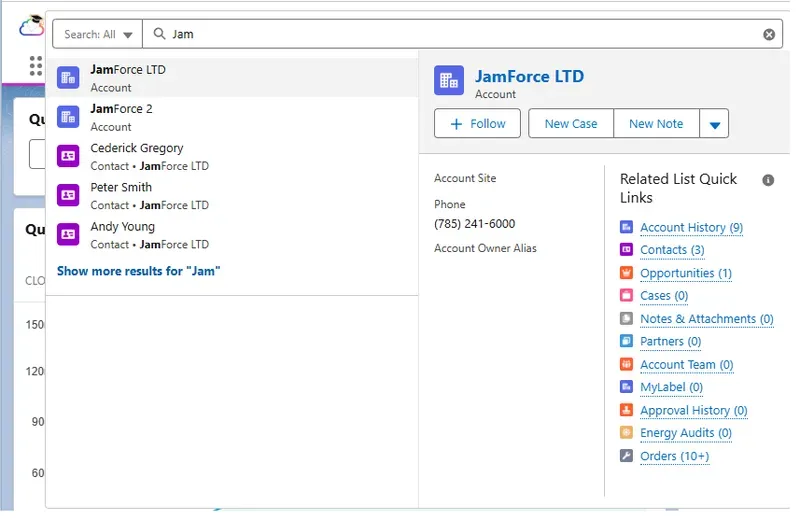
Global Search is a platform search experience rather than a SOSL query you can inspect directly, but it reflects the same kind of cross-object text-search behaviour that SOSL gives developers in Apex and API-based implementations.
✅ Conclusion
Section titled “✅ Conclusion”Reliable SOSL comes from treating the statement as two designs: FIND controls the indexed text search, while each RETURNING block controls the records and fields delivered to the caller. Keep those responsibilities separate, use a wildcard only when the matching rule needs it, and test the exact statement in its real execution surface and user context.
🚀 Next steps
Section titled “🚀 Next steps”Once the syntax is familiar, the next design question is how much data a search can return and how those results behave in Apex. Continue with SOSL Limits and Apex Integration to work through result caps, query-length constraints, bind variables, and production-safe search patterns.