
SOQL: Using Aggregate Functions

The previous guide on relationship queries showed how to return individual records with their related data. The next step is to answer a different kind of question: summarising pipeline, segmenting accounts, or validating data quality without exporting to Excel.
Aggregate functions solve those problems by letting you calculate totals, averages, counts and other metrics directly in SOQL. For example, you can answer business questions such as “what is the total pipeline value by industry?”, “how many accounts exist in each region?”, or “how many contacts have missing email addresses?”.
SOQL is especially useful here because it runs against Salesforce data in place, applies filters and grouping in one query, and gives you a precise result without the extra step of building a report or moving data into a spreadsheet. I use aggregate queries when I need a fast sanity check on data shape before building automation or reporting.
This guide will walk you through what aggregate functions solve in Salesforce, how to write them, how to combine them with GROUP BY and HAVING, and practical examples you can use in your own org.
📊 What are Aggregate Functions?
Section titled “📊 What are Aggregate Functions?”An ordinary SOQL query hands you rows. An aggregate function hands you an answer: a single value calculated across a set of records, worked out on the server before anything comes back. That distinction matters whenever the question is “how much” or “how many” rather than “which records”.
| Function | What it returns | Blank values |
|---|---|---|
COUNT() |
Number of matching records | Counted |
COUNT(fieldName) |
Records holding a value in that field | Skipped |
COUNT_DISTINCT(fieldName) |
Number of distinct values | Skipped |
SUM(fieldName) |
Total of a numeric field | Skipped |
AVG(fieldName) |
Average of a numeric field | Skipped |
MIN(fieldName) / MAX(fieldName) |
Lowest and highest value | Skipped |
The blank-values column is the one worth committing to memory. Salesforce states it plainly: every aggregate function ignores null values except COUNT() and COUNT(Id). Two queries over the same records can return different numbers purely because one skipped the rows with an empty field. When an aggregate total doesn’t match a report, that’s one of the first things to rule out, alongside sharing and the report’s own type, filters, and scope.
🧩 Examples of Aggregate Functions
Section titled “🧩 Examples of Aggregate Functions”The counting examples use Contacts, since counting is usually the first thing you do to a new object. From SUM() onwards they all run against the same small set of Accounts, so you can follow one dataset through totals, averages, and groupings.
🔢 COUNT()
Section titled “🔢 COUNT()”Start with the simplest question an org can ask: how many records are there?
SELECT COUNT() FROM ContactThis query counts the number of Contact records in your Salesforce instance and will return a single number representing the total number of Contacts that the user has visibility of.
Similarly, we can count on field names:
SELECT COUNT(Id) FROM ContactThis returns essentially the same result, because every record has an Id. However if we count on Email
SELECT COUNT(Email) FROM ContactThis usually returns a different number, because some Contact records may not have an Email value. In this query, only the number of contact records with a non-blank Email value will be returned.
We can also use aggregate functions to count the number of records that meet a certain condition by adding filter conditions:
SELECT COUNT() FROM Contact WHERE LastName = 'Smith'This query counts the number of Contact records where the LastName is ‘Smith’.
➕ SUM()
Section titled “➕ SUM()”Counting tells you how many records exist. SUM() tells you what they are worth, which is normally the number a stakeholder actually asked for. These are the Accounts the next few examples work from:
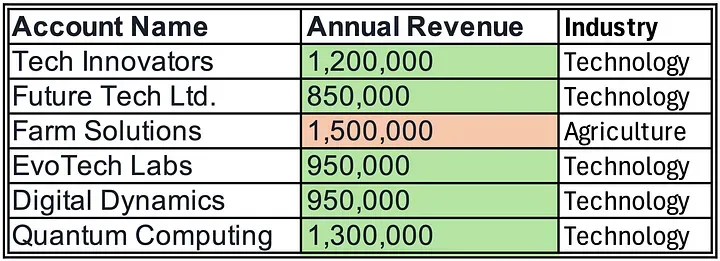
SELECT SUM(AnnualRevenue) FROM Account WHERE Industry = 'Technology'This query calculates the total AnnualRevenue for all Account records in the ‘Technology’ industry and for the data above, will return 5,250,000.
➗ AVG()
Section titled “➗ AVG()”An average is where the null rule starts to bite, so it’s worth slowing down here.
SELECT AVG(AnnualRevenue) FROM Account WHERE Industry = 'Technology'For the sample data above, this returns 1,050,000 (5,250,000 ÷ 5). The important detail is the denominator: AVG() divides by the number of records that actually hold a value, not by the number of records the WHERE clause matched. Add a sixth Technology account with a blank AnnualRevenue and the average stays at 1,050,000 rather than dropping to 875,000. That is the correct arithmetic, but it surprises people who expected blanks to count as zero.
📏 MIN() and MAX()
Section titled “📏 MIN() and MAX()”MIN() and MAX() return the lowest and highest values in a field, which makes them the fastest way to find the oldest record, the earliest close date, or the largest deal.
SELECT MIN(AnnualRevenue), MAX(AnnualRevenue) FROM Account WHERE Industry = 'Technology'For the sample data above, this returns a minimum of 850,000 and a maximum of 1,300,000.
One behaviour catches people out: on a picklist field, MIN() and MAX() use the sort order configured in Setup rather than alphabetical order. So MIN(StageName) returns the earliest stage in your defined sequence, not the stage whose name starts closest to “A”. That is usually what you want, but only if you know it is happening.
🧮 COUNT_DISTINCT()
Section titled “🧮 COUNT_DISTINCT()”Use COUNT_DISTINCT() when the question is about variety rather than volume: how many industries do we actually serve, how many owners touch this segment, how many countries appear in the data?
SELECT COUNT_DISTINCT(Industry) FROM AccountThis returns the number of distinct, non-null Industry values, in this case 2. Blank industries are ignored entirely, so this answers “how many different industries are recorded” rather than “how many accounts have been categorised”.
📈 Grouping Results with GROUP BY and HAVING
Section titled “📈 Grouping Results with GROUP BY and HAVING”Everything so far has collapsed the whole result set into one number. GROUP BY is what turns that into a breakdown: instead of one total for the org, you get one total per industry, per owner, or per stage. This is the point where an aggregate query starts to look like a report.
SELECT Industry, SUM(AnnualRevenue) FROM Account GROUP BY IndustryThis query groups Account records by Industry and totals AnnualRevenue within each group.
The rule to remember is that every non-aggregated field in your SELECT list must also appear in GROUP BY so this version breaks it:
SELECT Industry, Type, SUM(AnnualRevenue) FROM Account GROUP BY IndustryHere, Type is in the SELECT list, it isn’t wrapped in an aggregate function, and isn’t in the GROUP BY, so the query is rejected. Add it to the GROUP BY, or wrap it in an aggregate function.

Once you have groups, HAVING filters them on the aggregate value itself:
SELECT Industry, SUM(AnnualRevenue) FROM Account GROUP BY Industry HAVING SUM(AnnualRevenue) > 1600000This returns only the industries whose total AnnualRevenue exceeds 1,600,000.
The distinction between WHERE and HAVING is about timing, and it changes your answer rather than just your syntax. WHERE filters records before they are grouped, so it shrinks the input. HAVING filters the groups after the totals are calculated, so it hides results without changing the arithmetic behind them. A filter on a value each record already holds, such as Type = 'Customer', belongs in WHERE. A filter on a value that only exists once the group is formed, such as SUM(AnnualRevenue) > 1600000, belongs in HAVING. Get them the wrong way round and the totals will be right for a population you didn’t intend to measure.
Two constraints go with HAVING: any field you reference in it must also appear in your GROUP BY clause, and it can’t contain semi-join or anti-join subqueries.

🧾 Reading Aggregate Results in Apex
Section titled “🧾 Reading Aggregate Results in Apex”Everything above works unchanged in the Developer Console. The moment you move an aggregate query into Apex, though, the result type changes, and it’s an easy one to trip over the first time.
A normal query returns a list of sObjects. An aggregate query does not. Salesforce returns an array of AggregateResult objects, a read-only sObject that exists purely to carry query results. You can’t cast it to Account, and you can’t read values with dot notation.
Because you read those values back by name, each aggregate needs one. That name is an alias, and SOQL has its own notation for it: write the label straight after the expression, with no AS keyword. SUM(AnnualRevenue) totalRevenue names that column totalRevenue, which is then how you ask for it.
This example assumes an Apex class on API 67.0, matching the SOQL security guide, and a running user who should only see the accounts their sharing rules allow:
// Total revenue and account count per industry, for industries above a threshold.// WITH USER_MODE enforces sharing, object, and field-level security for the running user.AggregateResult[] results = [    SELECT Industry, SUM(AnnualRevenue) totalRevenue, COUNT(Id) accountCount    FROM Account    WHERE AnnualRevenue != NULL    WITH USER_MODE    GROUP BY Industry    HAVING SUM(AnnualRevenue) > 1000000];
for (AggregateResult ar : results) {    String industry = (String) ar.get('Industry');    Decimal totalRevenue = (Decimal) ar.get('totalRevenue');    Integer accountCount = (Integer) ar.get('accountCount');
    System.debug(industry + ': ' + accountCount + ' accounts, ' + totalRevenue);}
There are a few details worth noticing in this example:
- Values come out through
get(), not dot notation.ar.get('totalRevenue')returns anObject, so you cast it yourself.SUM()andAVG()returnDecimal, whileCOUNT(fieldName)returnsInteger. Casting aSUM()straight toIntegerthrows a runtime exception. - Skip the alias and you get
expr0. Salesforce assigns implied aliases in the formexpr0,expr1, and so on, in the order the unaliased aggregates appear.ar.get('expr0')works, but it breaks quietly the moment someone adds another aggregate to the select list. WITH USER_MODEsits betweenWHEREandGROUP BY. Clause order in SOQL is fixed, and putting it afterGROUP BYwon’t compile. The SOQL security guide covers what user mode does and does not enforce.- The clause order mirrors the reading order. Filter rows, apply security, group what survives, then filter the groups.
To verify it, run the same query in the Developer Console query editor first and compare the grouped totals against what your debug log prints. If the numbers differ, the usual cause is user mode: the console runs as you, and your Apex may be running as someone with narrower access.
🚧 Aggregate Query Limitations
Section titled “🚧 Aggregate Query Limitations”Aggregate queries do a lot of work in one round trip, but they come with real boundaries. These are the ones most likely to interrupt you:
- An aggregating query can’t use
LIMITwithoutGROUP BY.SELECT MAX(CreatedDate) FROM Account LIMIT 1is invalid. The exception isCOUNT()on its own as the field list:SELECT COUNT() FROM Account LIMIT 100is valid and counts up to the limit you set, which is a cheap way to test whether more than a given number of records exist. - Formula fields can’t be grouped, and not every field type supports grouping at all. If a
GROUP BYfails unexpectedly, check the field’sgroupableattribute in a describe call before assuming the query is wrong. - No
__rchild relationship expressions in a grouped query. Child relationship traversal andGROUP BYdon’t combine, so aggregate the child object directly instead. - Aggregate queries can’t page, which rules them out of a Batch Apex
QueryLocator. SOAP API can’t callqueryMore()on a query withGROUP BY, and REST API gets no query locator. Because Batch Apex usesqueryMore()internally, returning an aggregate query fromDatabase.QueryLocatorfails with Aggregate query does not support queryMore(), use LIMIT to restrict the results to a single batch. Run the aggregate in a@ReadOnlyschedulable class and pass the results to the batch, or return a customIterableinstead. - External objects support almost no aggregation.
GROUP BY,HAVING,SUM(),AVG(),MIN(),MAX(), andCOUNT(fieldName)are all unsupported on external objects. BareCOUNT()is the one that still works. - Summary results only. You get the number, not the records behind it. When someone asks “which accounts make up that total?”, that is a second, ordinary query.
COUNT_DISTINCT()is not deduplication. It tells you how many distinct values exist; it does nothing about the duplicate records holding them.
🧭 Working With Aggregate Queries in Practice
Section titled “🧭 Working With Aggregate Queries in Practice”A few habits make the difference between an aggregate query that answers a question and one that quietly misleads:
- Filter before you aggregate. A
WHEREclause reduces the rows the aggregation has to touch, which helps both accuracy and performance. See filtering with the WHERE clause for the operators worth knowing. - Watch the query row limit. Aggregate queries are still subject to the limit on total query rows. All aggregate functions except
COUNT()andCOUNT(fieldname)count each row used by the aggregation as a query row for limit tracking.COUNT()andCOUNT(fieldname)count as one query row, unless the query has aGROUP BYclause, in which case one query row per grouping is consumed. A grouped count over a large object is cheaper than it looks; aSUM()over the same object is not. SOQL performance and limits covers selectivity in depth. - Reconcile against a report before you trust a number. If an aggregate total and a report disagree, work through the usual suspects before you suspect a platform bug: nulls the aggregate skipped, the sharing context each one ran under, a
WHERE/HAVINGmix-up, and the report’s own type, filters, and scope. A report built on “Accounts with Contacts” quietly excludes every account that has none. - Test in the Developer Console first. The console or Salesforce Inspector gives you the fastest feedback loop for getting the grouping right before it goes anywhere near Apex. SOQL fundamentals covers the setup for both.
✅ Conclusion
Section titled “✅ Conclusion”Aggregate functions let you answer “how much” and “how many” without exporting a single row, and once GROUP BY and HAVING are in your hands you can segment that answer as finely as the data allows.
The judgement to carry away is that an aggregate query is only as trustworthy as the records it quietly left out. Nulls are excluded by every function except COUNT() and COUNT(Id), and sharing decides which rows the running user could see in the first place. Those two are where to start when someone questions a number, along with the report’s own type and filters if you’re comparing against one. When you can say what a figure includes and what it excludes, you can defend it in front of the person who asked for it.
For further reading check out the Salesforce documentation
🔜 Your Next Steps
Section titled “🔜 Your Next Steps”- Watch how COUNT treats blanks: Run
COUNT()andCOUNT(fieldname)on the same object and see how nulls drop out of the second. - Group and filter groups: Group a numeric field by a category with
GROUP BY, then filter the groups withHAVING. - Read the result in Apex: Run a grouped query in anonymous Apex and pull the values out of
AggregateResultwithget()and an alias.
Next, move on to SOQL: A Guide to Date Literals to filter those summaries by relative time periods without hard-coding dates.